You can upload an XML (IMS-QTI) compatible file by browsing for it using the "Select" button. Using the "Question Mapping" section, you can map the imported questions to a specific program/course/lesson and/or a specific learning indicator.
.gif)
Import Questions
You can import an XML file of a certain question type or you can import a ".zip" file containing multiple XML files and a folder containing images in case the question requires an image (e.g. Hotspot, Drag & Drop). The acceptable format of the XML file(s) is IMS-QTI v.2.0 and higher. Once you upload the question(s), you can see the following columns:
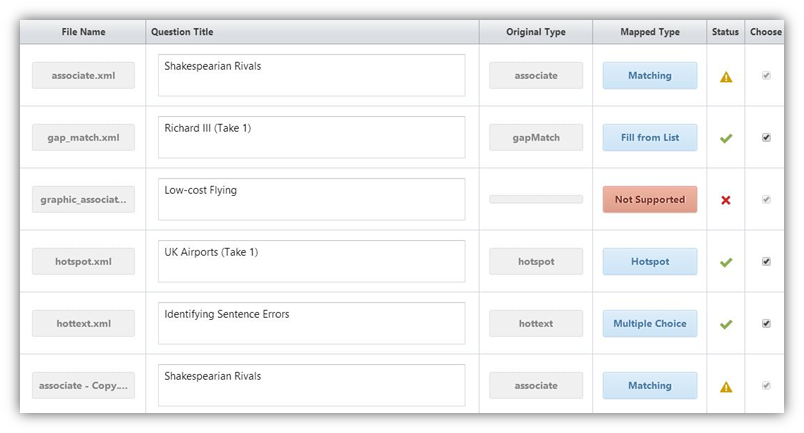
•File Name shows you the name of the XML file(s) that you have uploaded
•Question Title is where you can view and edit the title of the question
•Original Type is the type of question that is in the XML format.
Mapped Type is where you can see the corresponding XML original type to the SwiftAssess Question Type. If the question type from XML is not supported on SwiftAssess, you will get a (1).png) display in the Mapped Type column. Some of the mappings are given in the table below.
display in the Mapped Type column. Some of the mappings are given in the table below.
|
IMS-QTI Type |
SwiftAssess Mapped Type |
|
choice |
Multiple Choice, True / False, Multiple Select (Based on multiple correct response) |
|
order |
Reorder |
|
associate |
Matching |
|
match |
Matching |
|
gap_match |
Fill from list |
|
inline_choice |
Fill in the blanks |
|
extended_text |
Essay |
|
hottext |
Multiple Choice |
|
hotspot |
Hotspot |
|
math |
True or False |
|
nested_object |
Essay |
|
select_point |
Hotspot |
|
multi_input |
NONE |
|
graphic_order |
Drag and Drop |
|
graphic_associate |
NONE |
|
graphic_gap_match |
Drag and Drop |
|
position_object |
Drag and Drop |
|
slider |
Short Answer |
|
template |
Fill in the blanks |
|
text_entry |
Fill in the blanks |
•Status shows you the status of the question in the question bank. There are three types of statuses that appear in this column
• indicates that the question has been read successfully and can be added to the questions bank.
• indicates that the question type is not supported and cannot be added to the questions bank.
• indicates that the question title has been duplicated and cannot be added. If you change the question title for one of the duplicates, you can add it to the questions bank.
•Choose is where you can choose to add the question to the questions bank (if it is successfully read) by checking the check box in the column  .
.
•You can add the checked questions to the questions bank by clicking the  button.
•Once you have added the question(s) successfully to the questions bank, you can edit them using the questions editor.
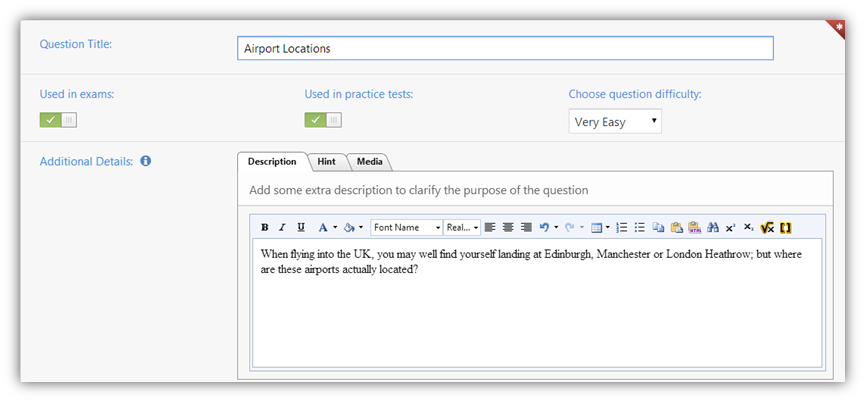
•Here, you can see that the title is already set and so is the description of the question. You can change the settings of the question accordingly and save those changes.
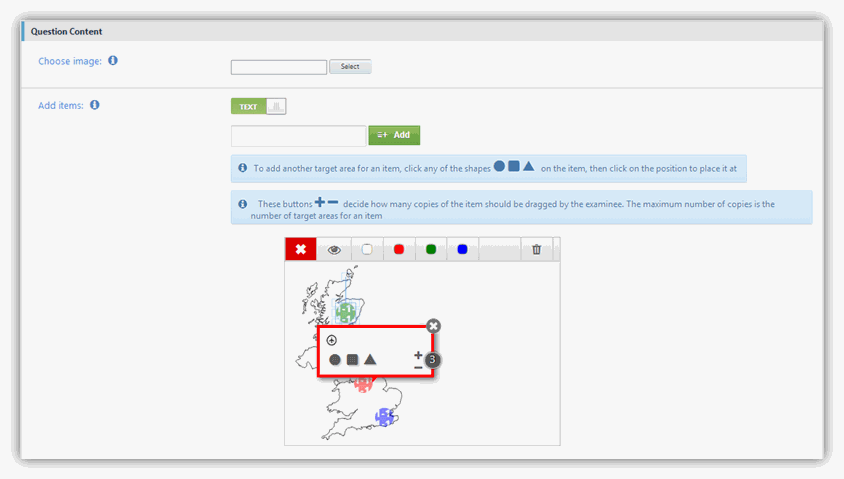
•In the case of questions that contain images, you can also edit those preferences accordingly in the "Question Content" section. For more details on editing questions, see Questions Editor.
See Also
SwiftAssess © 2021